
Using TikTok Ads Manager comes down to knowing four tabs. Dashboard gives you a summary, Campaigns holds your campaigns, ad groups and ads, Tools holds your assets and account settings, and Analytics holds your reports.
Most everyday jobs sit in two places. Ad status, custom columns and automated rules live under Campaigns, while billing, business details and closing the account live under Tools, in the Settings group.
This page is a map of where things are and how to do the routine tasks. If you haven’t built your first campaign yet, start with a step-by-step guide to running TikTok ads, then come back here when you need to find something.
Get Up to $6,000 in Free TikTok Ad Credits
TikTok offers ad credit incentives for new advertisers, helping you test campaigns with a lower upfront cost.
The four tabs in TikTok Ads Manager
TikTok Ads Manager is TikTok’s self-serve tool for creating, running and measuring ads, and everything in it hangs off four tabs in the top bar. TikTok’s About TikTok Ads Manager page names them as Dashboard, Campaigns, Tools and Analytics.
- Dashboard: a home page with spend, alerts, recommendations and a short performance summary.
- Campaigns: every campaign, ad group and ad you’ve created, with its status and results.
- Tools: Events, Creatives, Audiences, Catalogs, Comments and Instant Pages, plus the Settings group where account setup and billing live.
- Analytics: custom reports, report templates and scheduled reports.
Your account name sits on the right side of the same top bar. Click its dropdown to see the ad account’s name and ID, which support will ask for when you contact them.
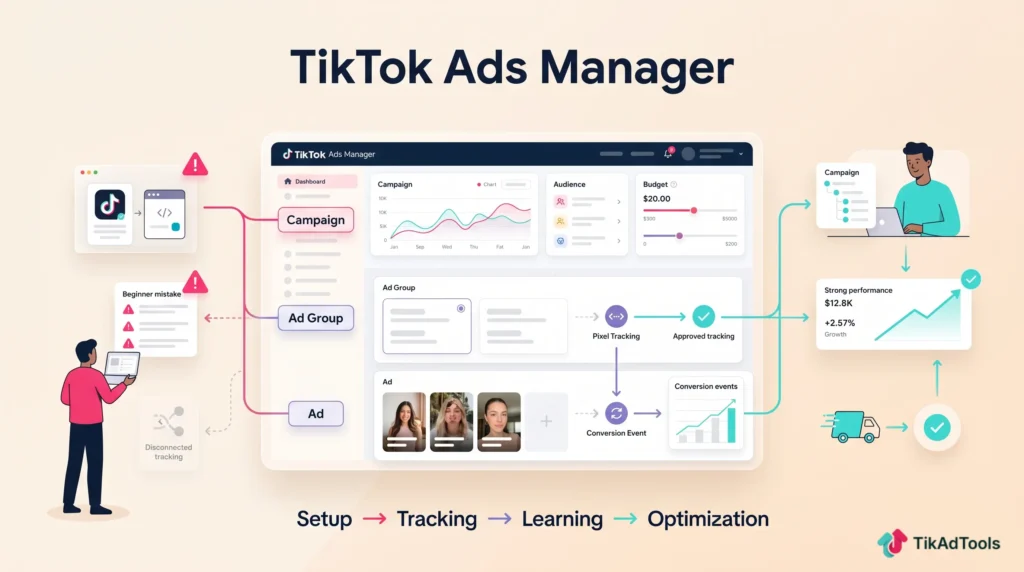
How to get into TikTok Ads Manager
You get into TikTok Ads Manager by signing in at ads.tiktok.com with the email address or phone number you registered with. After you log in, the Dashboard opens first.
If you don’t have a login yet, sign-up takes a few screens. TikTok’s account setup guide lists what it asks for and notes that most account reviews take less than 24 hours:
- an email address or phone number, plus a password
- your country or region, industry and legal business name
- your time zone, phone number and currency
- billing and payment details, which depend on your country
You can build a campaign while the review runs, but nothing will deliver until the account is approved. To see where the review stands, open Account setup, click My account, then go to Basic information and check the status shown next to My account.
You don’t need TikTok Business Center to get started. Business Center is a separate space for businesses that manage several ad accounts, team members or payment methods in one place, so you can add it later if your setup grows.
Where to find each setting: a quick task map
The task map below shows where to click in TikTok Ads Manager for each everyday setting, so you can find the right button when you know the job but not the menu. Every path comes from TikTok’s own help articles, which are linked in the sections below.
| Task | Where to click |
|---|---|
| Check if an ad is approved or delivering | Campaigns > Campaign, Ad group or Ad tab > Status column > View |
| Add or remove metrics in the table | Campaigns > Custom table (top right) > Custom Columns |
| Download campaign data | Campaigns > three dots (top right) > Export data |
| Create an automated rule | Campaigns > Automated Rules > Create a New Rule |
| Start a split test | Campaigns > create a campaign > Create a split test toggle |
| Set up the Pixel or Events API | Tools > Events |
| Build a custom report | Analytics > Custom reports > Create report |
| Add balance on manual payment | Tools > Settings > Billing > Add balance |
| Edit business details | Tools > Settings > Account setup |
| Add a team member | Business Center > Users > Add Members |
| Change the interface language | Menu next to your profile icon (top left) > three dots > Language |
| Close the ad account | Tools > Account setup > Basic information > More actions > Close Account |
| Find your ad account ID | Account name dropdown (top right) |
| Contact support | Blue Ad Assistant icon (bottom right) > Get support |
Labels can differ a little between accounts. New accounts, for example, see a section called Actions on the Dashboard where older accounts see Recommendations.
Dashboard tab: what each card tells you
The Dashboard is the first page you see after logging in, and it’s built for a quick health check rather than deep analysis. TikTok’s dashboard article describes it as an overview of performance metrics, insights, key alerts, recommendations and budget spending.
TikTok’s guide to viewing ad performance lists these parts of the page:
- Recommendations (called Actions on new accounts): suggested fixes for your account.
- Account overview: your balance and spend at a glance.
- Ad group status: which ad groups are active, partially delivering or not delivering.
- Performance: trend lines for your main metrics, with a calendar icon to change the date range.
- Insights: top-performing ads on TikTok and audience insights.
- Log: a record of the changes made in your account.
Check the alerts at the top before anything else. The most urgent ones flag problems like a frozen balance or a failed audit, which can stop your ads from running.
The Dashboard shows you that something changed, but rarely why. To read the numbers behind it, keep our TikTok ads metrics guide open next to it.
Campaigns tab: status, columns, rules and tests
The Campaigns tab is where you’ll spend most of your time. It has three sub-tabs, Campaign, Ad group and Ad, which match the three levels every TikTok campaign is built on.
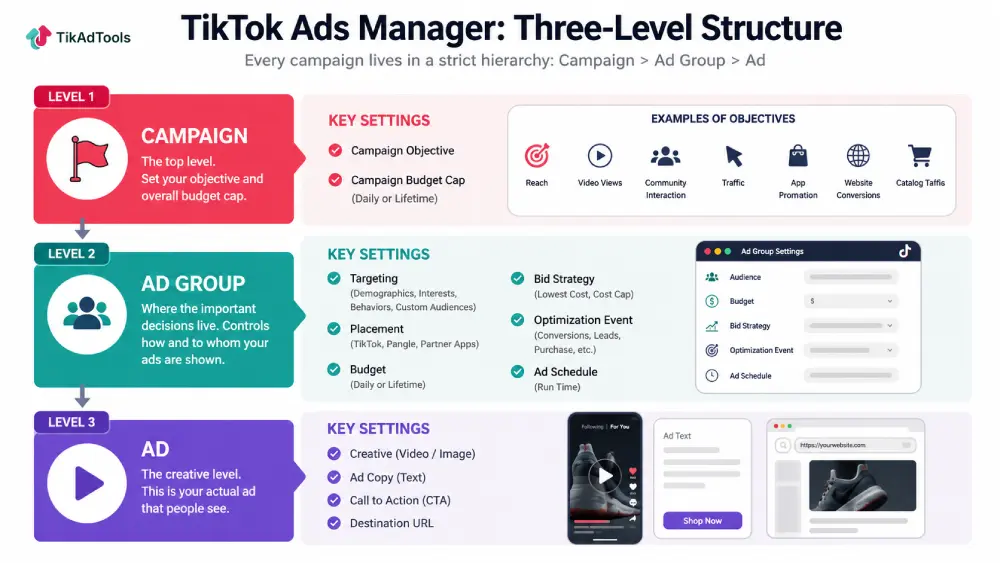
For a deeper look at how to structure campaigns correctly from the start, the TikTok ads structure guide covers the logic behind separating audiences into ad groups versus separate campaigns.
Check if an ad is approved or delivering
The Status column tells you whether something is running and, if not, why. Open the Campaign, Ad group or Ad tab, find the item, and read the status detail next to the main status, such as Active, Partial Delivery or Not Delivering.
Click View beside the status to open an action card. A Fix card deals with problems that stop spending, such as a rejected ad you can appeal, while an Optimization card suggests changes like adding creatives or adjusting the bid.
TikTok’s ad status guide puts the review time for most ads at under 24 hours, and a few take longer.
Change the columns you see
The default table only shows a handful of metrics. To change it, click the Custom table dropdown at the top right of the Campaigns page, then pick a ready-made template or click Custom Columns to choose your own metrics.
The same area has Breakdown, which splits results by day, week or month, and a Compare toggle for putting two date ranges side by side. To download what you see, click the three dots at the top right and choose Export data.
Set automated rules
Automated rules check your campaigns on a schedule and act for you, such as turning off ads whose costs climb unexpectedly. You’ll find them under Campaigns, not Tools: click Automated Rules, then Create a New Rule, and either start from scratch or pick a template.
TikTok’s automated rules guide says each rule can hold up to five conditions, and a rule set to run continuously checks every 30 minutes.
You can also turn on Notify Me to get an email when a rule’s conditions are met. Those emails show how often a rule actually fires, which helps you catch one that pauses ads or raises budgets more often than you meant it to.
Run a split test
Split testing isn’t a separate tool. You switch it on with the Create a split test toggle while you create a campaign, then pick the variable to test and the key metric TikTok will use to compare the two ad groups.
TikTok’s split test guide recommends a test schedule of at least 7 days so the system can collect a useful sample.
Once a test or campaign is live, hold back on edits. The TikTok ad learning phase guide explains which changes send an ad group back into learning.
Tools tab: events, creatives, audiences and settings
The Tools tab holds the building blocks your ads use, plus the account’s settings. Its dropdown holds these items:
- Events: where you connect the TikTok Pixel and the Conversion API so Ads Manager can see purchases, sign-ups and other actions on your site.
- Creatives: your library of uploaded videos and images.
- Audiences: the custom and lookalike audiences you can target. The TikTok ads targeting guide explains when to use each one.
- Catalogs: product catalogs for shopping ads.
- Comments: the Comments Manager, where you can read, reply to, hide or block comments on your ads.
- Instant Pages: lightweight, fast-loading landing pages you build from templates.
The same menu has a Settings group. Account setup holds your business details, the account status and the option to close the account, and Billing holds your balance and payment methods.
Analytics tab: custom and scheduled reports
The Analytics tab is where you build reports the Campaigns table can’t show, such as results split by placement across several campaigns. TikTok’s custom report guide walks through these steps:
- Click Custom reports under Analytics.
- Click Create report for a blank report, or click the arrow next to it and choose Start with a template.
- Pick your dimensions, which become rows (campaign, ad group, ad or placement), and your metrics, which become columns (CPM, CPC, CTR and so on).
- Choose the date range: yesterday, the last 7 or 30 days, or custom dates.
- Switch Pivot table to Trend line if you want a chart, then click Save and name the report.
From a saved report you can click Export for a one-off download or set up Scheduled running to get it by email. TikTok’s scheduled report guide allows up to 5 recipients per schedule and cancels a schedule if nobody downloads its reports for 3 consecutive months.
If you manage more than one ad account, users with an analyst, operator or admin role can pull several accounts into one custom report from the account selector at the top.
Billing: how to add funds and how you pay
How you add money depends on the billing option you picked when you created the account. TikTok’s billing options page lists three:
- Manual payment: you add a balance first, and ads stop running when it runs out.
- Automatic payment: TikTok charges your saved payment method when you reach your billing threshold or billing date, whichever comes first.
- Monthly invoicing: TikTok sends an invoice each month, and only eligible businesses get this option.
To add funds on manual payment, open Tools, find Settings, click Billing, then click Add balance on the Payment page, as TikTok’s manual payment guide shows. If a Business Center manages the ad account, you add balance from the Payment management page in Business Center instead. Some of TikTok’s help pages call the same menu item Payment instead of Billing, so look for either name.
This choice is hard to undo. Once you move to automatic payment you can’t go back to manual payment, and once you’re on monthly invoicing you can’t switch to either of the other two.
How much to put in is a separate question, and the TikTok ads budget strategy guide is worth reading before your first top-up.
How to add users to TikTok Ads Manager
The usual way to give teammates access is through TikTok Business Center, where you add people once and then choose which ad accounts and assets each one can use. TikTok’s guide to adding Business Center members sets out the steps:
- In Business Center, click Users in the left-hand menu, then Add Members.
- Enter the person’s email address and confirm their name.
- Pick a role: Admin for full access, or Standard for access only to the accounts and assets you assign.
- If needed, add Finance Manager (full control of payments) or Financial Analyst (can only view and download financial data).
- Choose the ad accounts and assets they can use, set the access level for each, and click Save.
The person gets an email invitation. If it doesn’t arrive, click their email address in the Users list and choose Resend request.
Agencies asking for access to a client’s account usually take a different route, where the agency requests access from its own Business Center.
Settings you cannot change later
A few choices are locked once your ad account exists, and beginners often find out only when they try to change them. TikTok’s ad account information article lists four you can’t edit after creation:
- Time zone: your reporting and ad scheduling follow it.
- Region: the country or region the account is registered in.
- Business name: the legal name TikTok uses to verify your business.
- Currency: what your balance, spend and invoices are shown in.
If one of these is wrong, contact customer support, since the same article points you there for changes.
TikTok’s user settings article adds that the registered country on your TikTok for Business login can’t be changed either. Billing is the third trap: as the billing section above explains, you can move from manual payment to automatic payment or invoicing, but never back.
Before you click Register, check that the time zone matches where your customers are, because that’s the clock your schedules and daily reports will run on.
Change language, login details or close your account
Changing the language, updating your login details and closing the ad account each have their own short path in TikTok Ads Manager.
Change the language
TikTok’s language guide lists 19 interface languages, from English and Spanish to Arabic, Japanese and Vietnamese. To switch:
- Hover over your username icon (three horizontal lines) in the upper-left corner.
- Click the three dots next to your username in the menu that opens.
- Click Language under User Settings.
- Pick the language you want.
Update your email, phone number or password
Login details live on the User Settings page, which also opens directly at ads.tiktok.com/ac/page/settings. Under Personal Info you can change your username, email address and phone number, and the Password section lets you set a new password.
Changing your email or phone number asks you to verify the current one with a code first, so keep access to it until the change is done.
Close your ad account
You can close an ad account from Account setup, as long as it has no outstanding payments and isn’t suspended.
- Open the Tools tab and click Account setup.
- Go to Basic information.
- Click More actions, then Close Account.
- Review the details and click Confirm.
TikTok’s account closure guide says any remaining balance is refunded to the original payment method within 60 calendar days, and an ad account owned by a Business Center is closed from Business Center instead. Closing the ad account doesn’t remove your TikTok for Business login, so you can still use Business Center and other TikTok for Business products.
If the account is suspended, you’ll need a successful appeal before you can close it.
How to contact support from inside Ads Manager
Support starts from the Ad Assistant, the blue round icon in the lower-right corner of Ads Manager. Click it, choose Get support at the top right of the chat window, pick a topic, describe the problem and click Submit or Enter chat, as TikTok’s support contact guide describes.
To follow up on a request you already sent, choose Manage Tickets in the same menu. If you can’t log in at all, the Ad Assistant isn’t available to you, so use TikTok’s Feedback and Help contact form instead.
Have your ad account ID ready before you start. You’ll find it in the account name dropdown at the top right of Ads Manager.
Frequently asked questions
Is TikTok Ads Manager free to use?
TikTok’s setup steps for Ads Manager ask for business and billing details but don’t list a sign-up fee. What you pay for is ad delivery, through manual payment, automatic payment or monthly invoicing.
Where do I find my TikTok ad account ID?
Click your account name on the right side of the top menu bar in TikTok Ads Manager. The dropdown shows the ad account name and its ID, which you’ll need when you contact support.
How do I check if my TikTok ad is approved?
Go to Campaigns, open the Ad tab and read the Status column. Click View next to the status to see the reason, and if the ad was rejected, the card shows the policy reason and how to fix it.
Can I change my ad account’s currency or time zone?
Not on your own. TikTok locks the time zone, region, business name and currency once the ad account is created, so you’d have to ask customer support for help.
How do I delete my TikTok Ads Manager account?
Open Tools, click Account setup, go to Basic information, then click More actions and Close Account. The account can’t have an unpaid balance or be suspended when you do this.
Why are my TikTok ads not spending?
Start with the Status column on the Campaigns tab, which shows why an item isn’t delivering, even when the cause sits at a lower level, such as a rejected ad inside an active campaign. Running the account through the Ad Account Health Checker is a fast way to rule out an account-level issue before you start second-guessing your budget.